
Guides
Learn NextRemote step by step.
One guide per task, on the website and in the app: what you need before you start, short steps with the result you should see and what to do if something goes wrong.
Searches the titles, steps and common problems of every guide.
What do you want to do?
The most searched tasks, one click away.
First steps
Get started
Understand how it works, create your account, install the app on Windows, macOS or Linux and solve the most common problems.
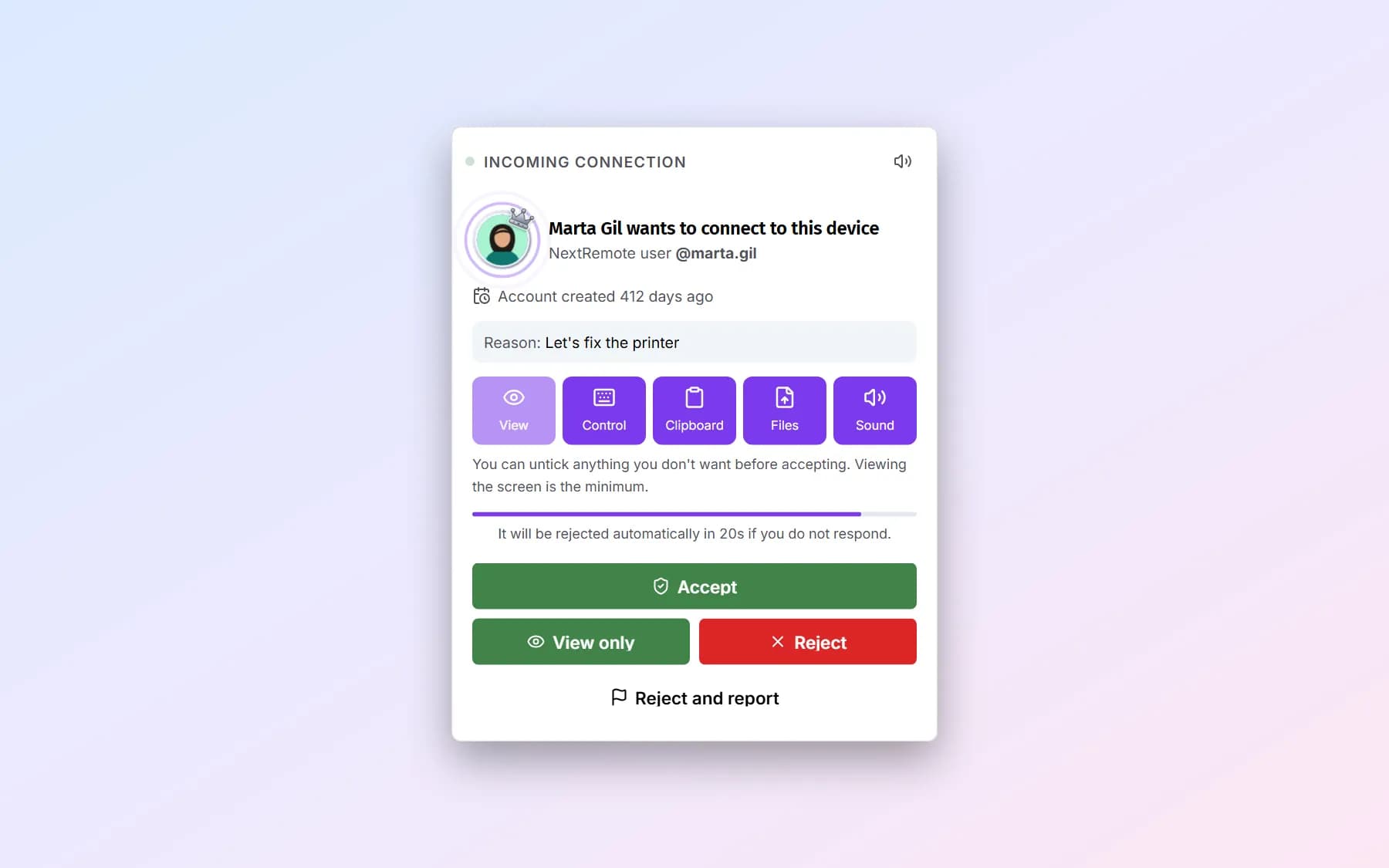 How NextRemote worksThe app, the 9-digit code, who accepts, unattended access, your account and what we store: everything you need to know before you start.Read the guide
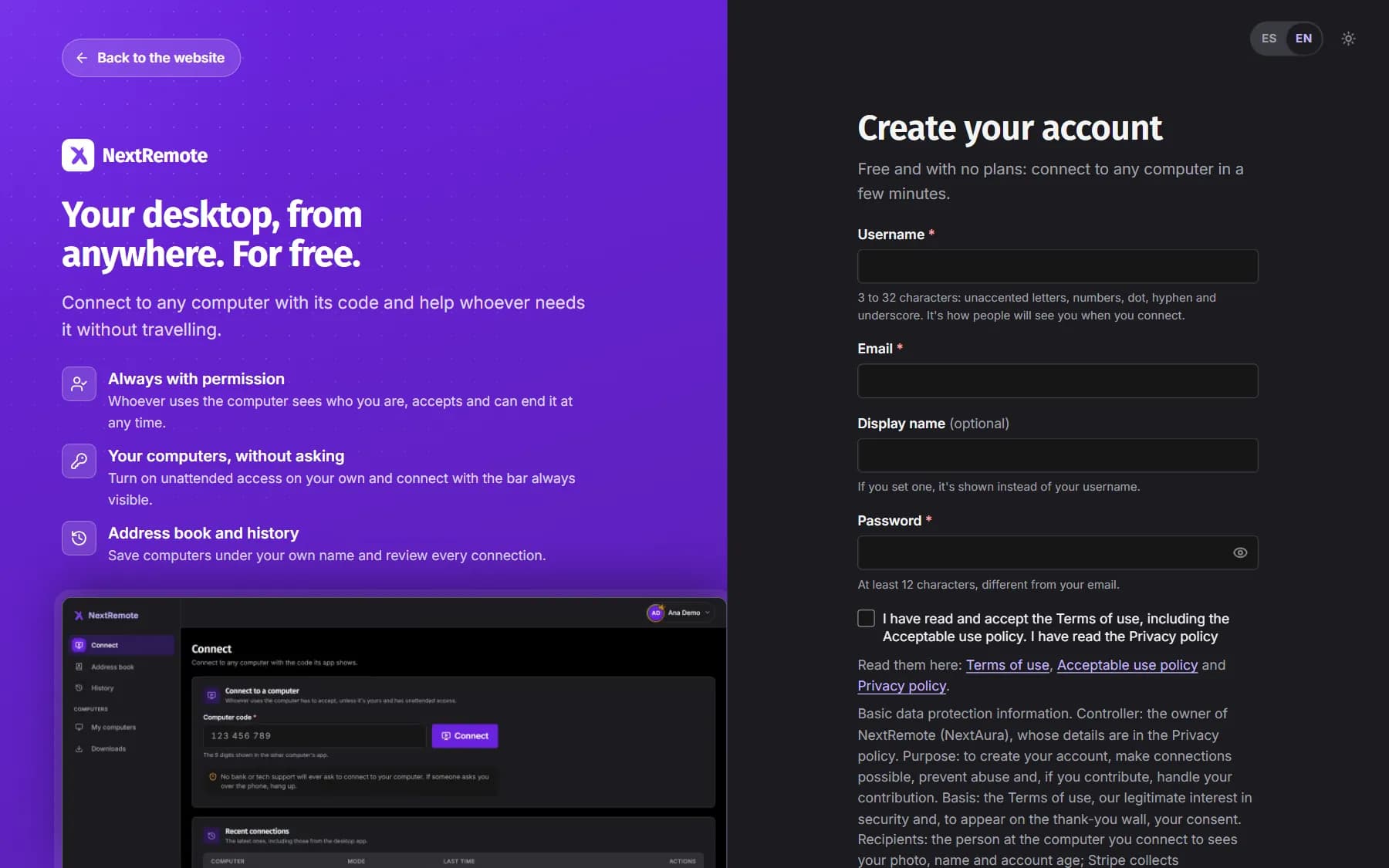
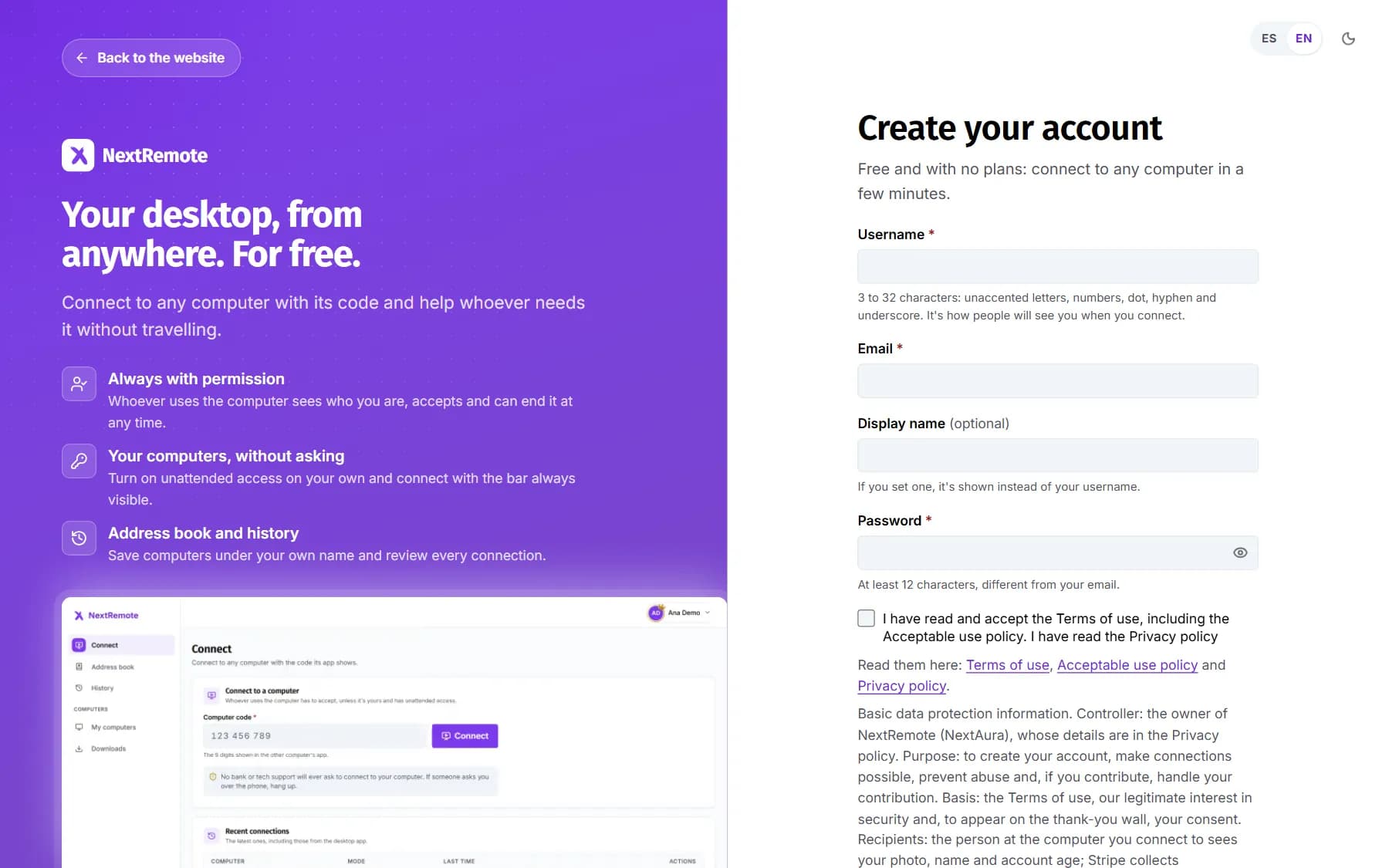 Get started with NextRemoteCreate your account, add a photo, install the app on your computer, link it and make your first connection in a few minutes.Read the guide
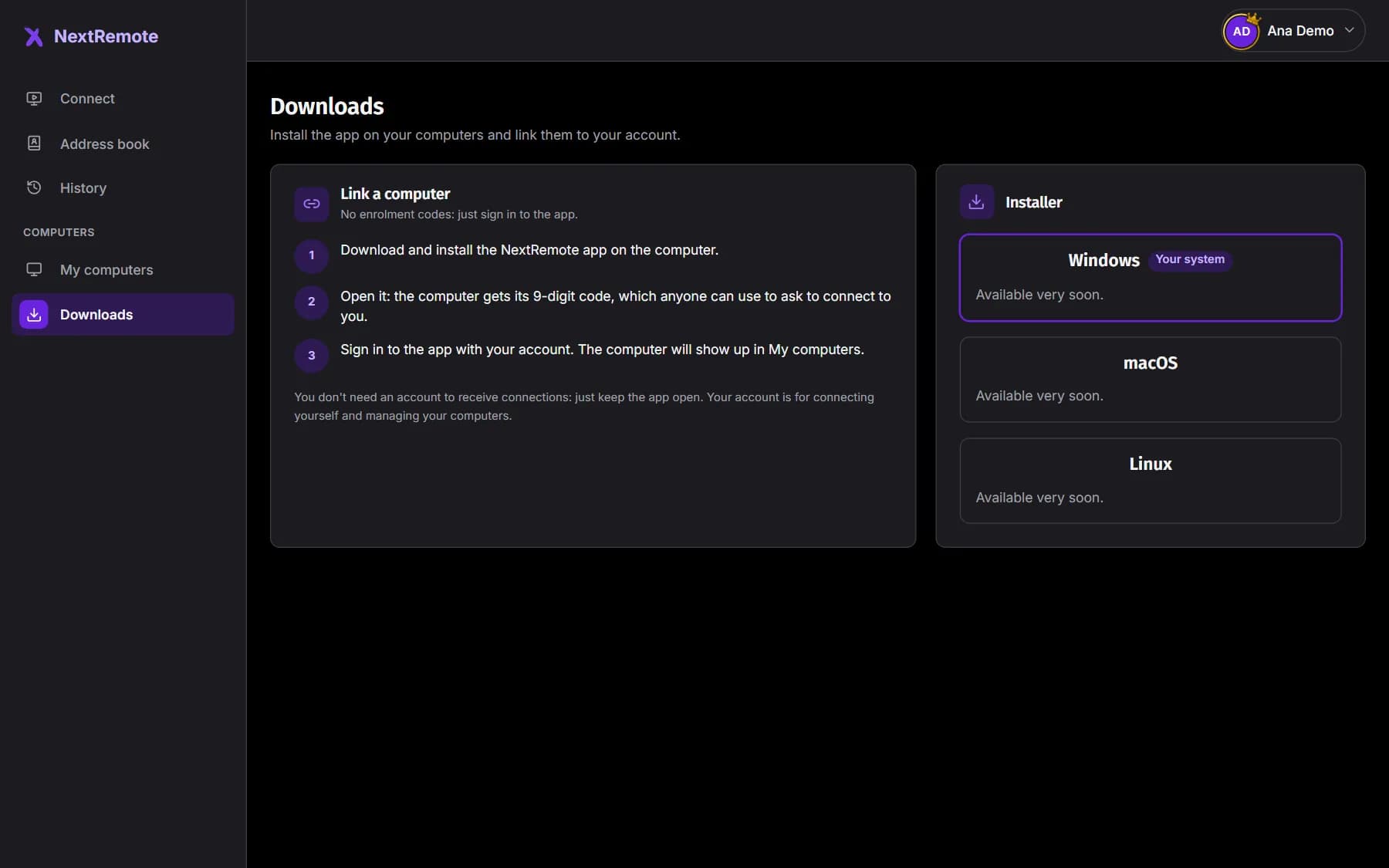
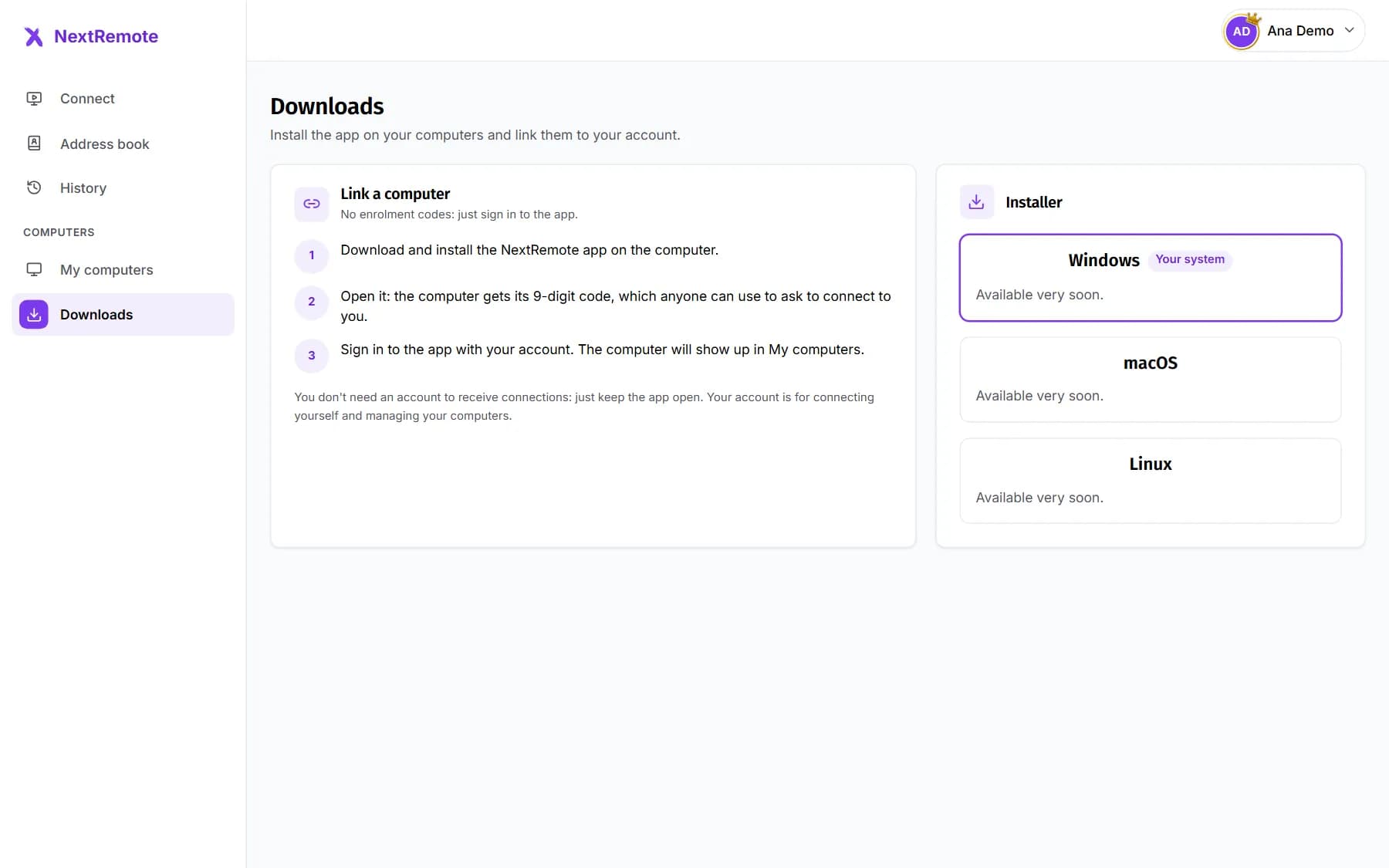 Install the app on a computerDownload the installer, install it and the computer registers itself with its 9-digit code. Then link it to your account if it is yours.Read the guide
- The Windows installer, screen by screenWhat each screen of the Windows installer asks for, how to install silently with /S or the MSI and how to uninstall it.Read the guide
- NextRemote on macOS and LinuxInstall the macOS or Linux package, grant Screen Recording and Accessibility permissions, and what works on each system. Both are in testing.Read the guide
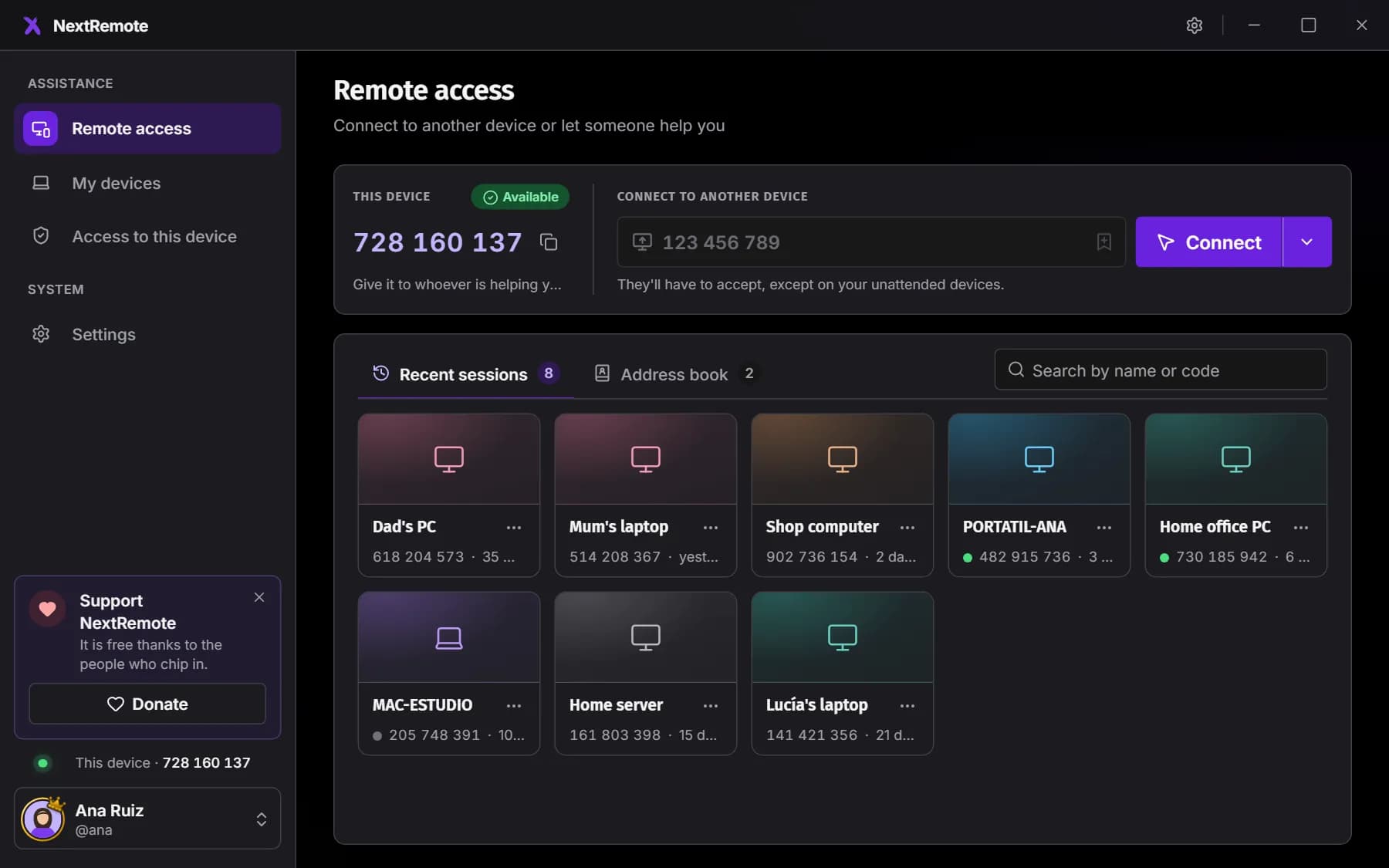
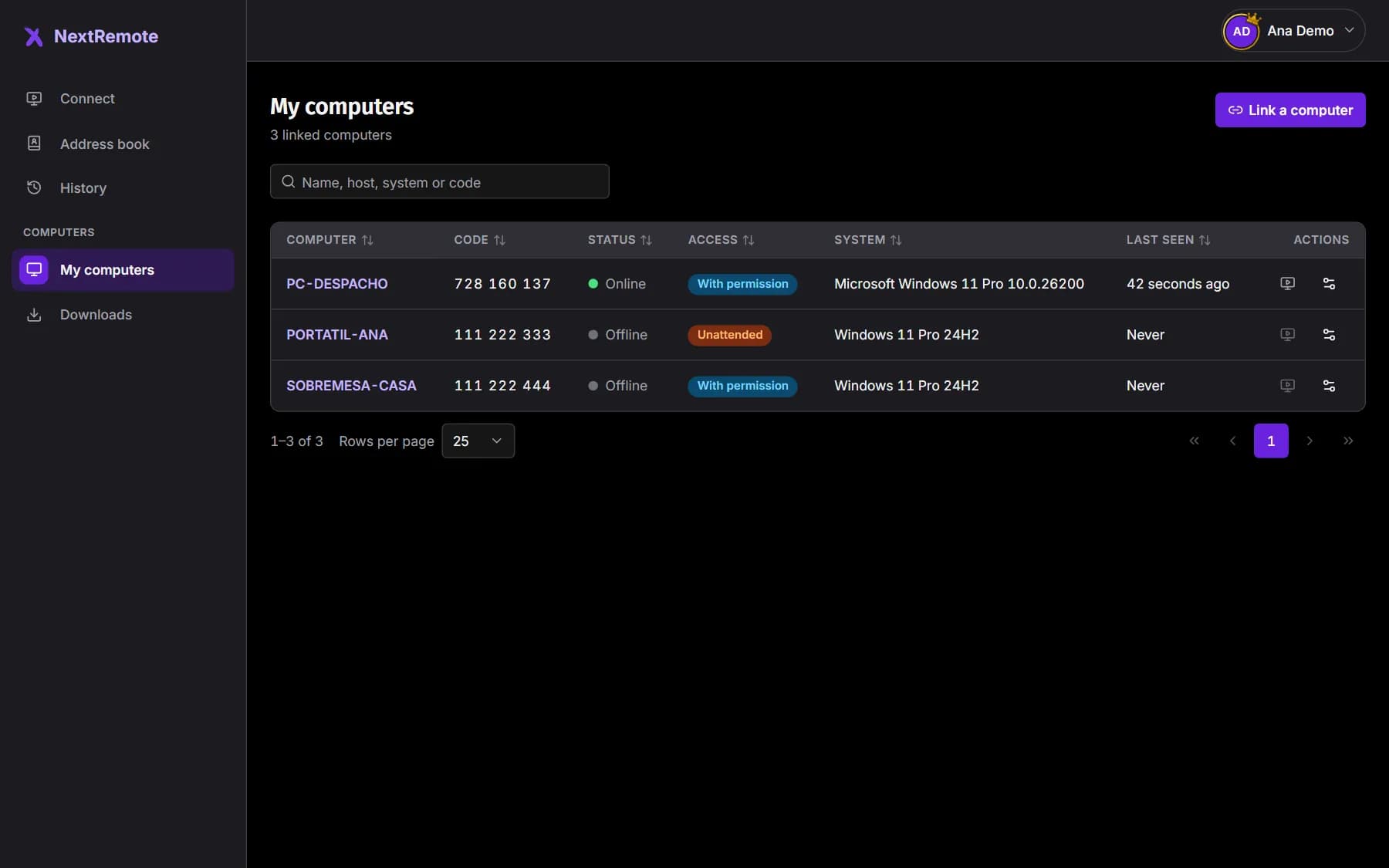
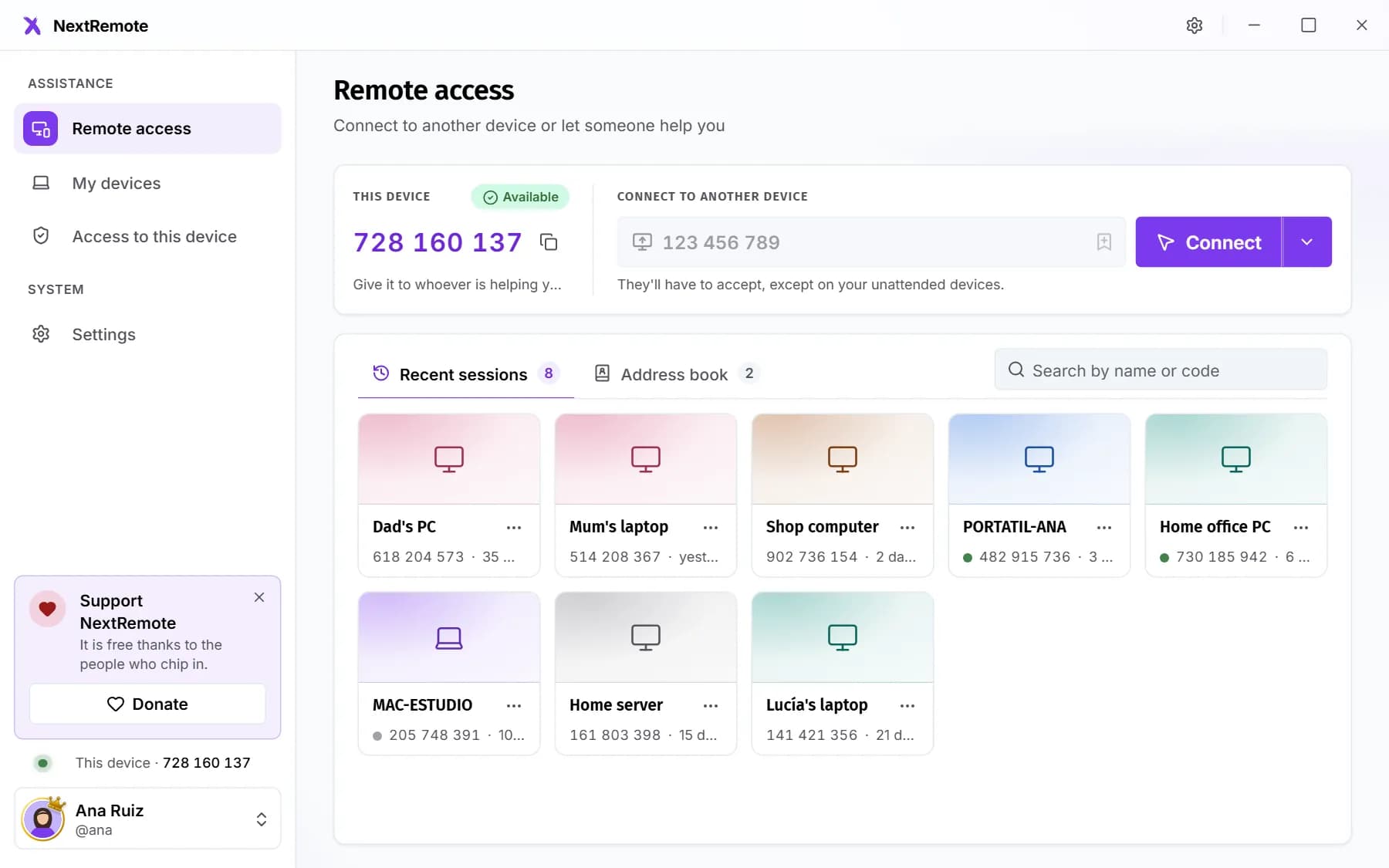 The desktop appThe app's pages: Remote access with your code and to connect, Access to this device, My devices and Settings.Read the guide
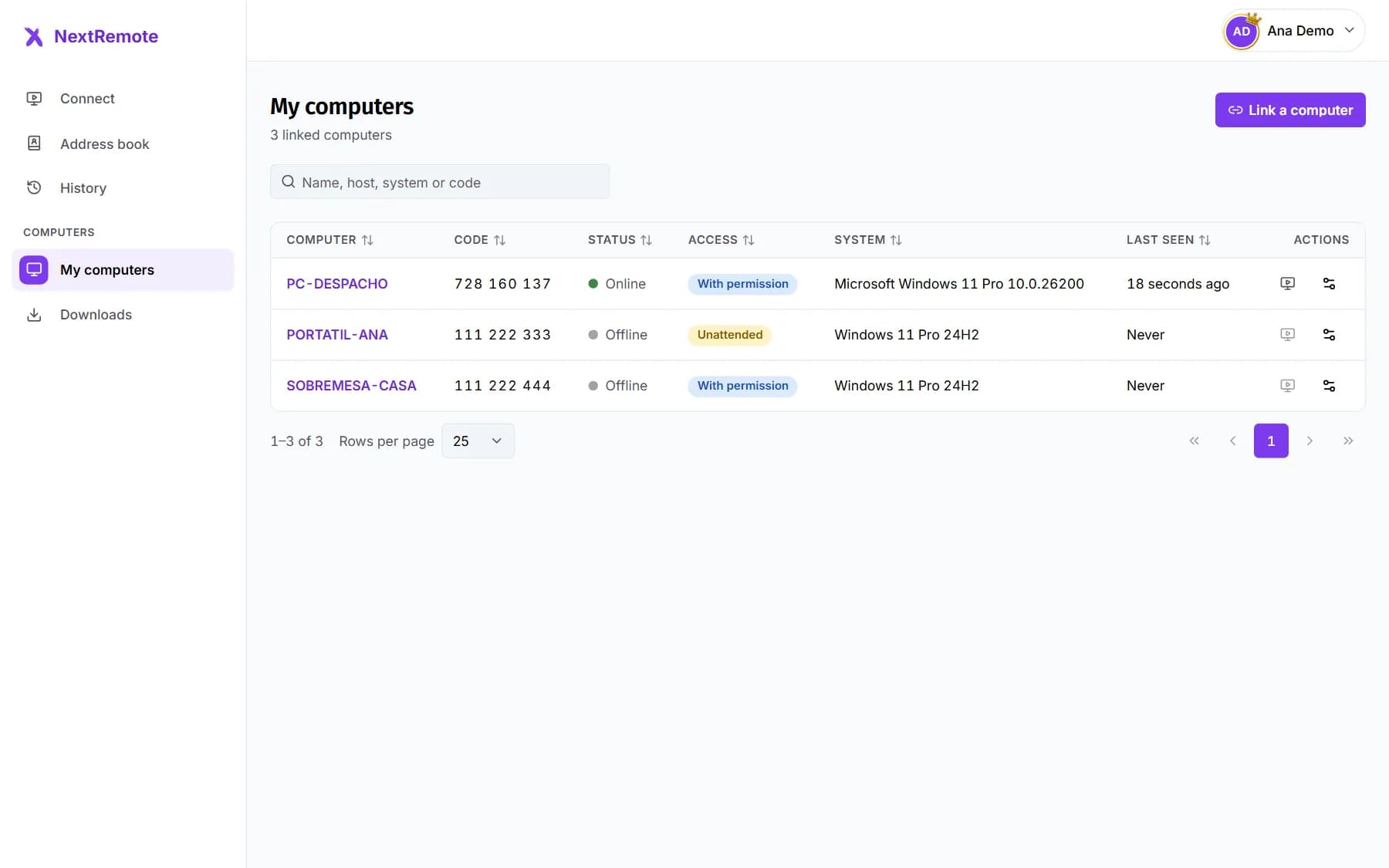 Unlink and uninstallUnlink a computer from your account and remove the app on Windows, macOS or Linux without leaving anything half done.Read the guide
- If the app is not workingThe computer does not register, shows as offline, the service is not responding or the screen cannot be seen: how to check and fix it.Read the guide
Remote access
Connect and help
Connect from the website or the app, accept a connection, decide what can be done on each computer and check the history.
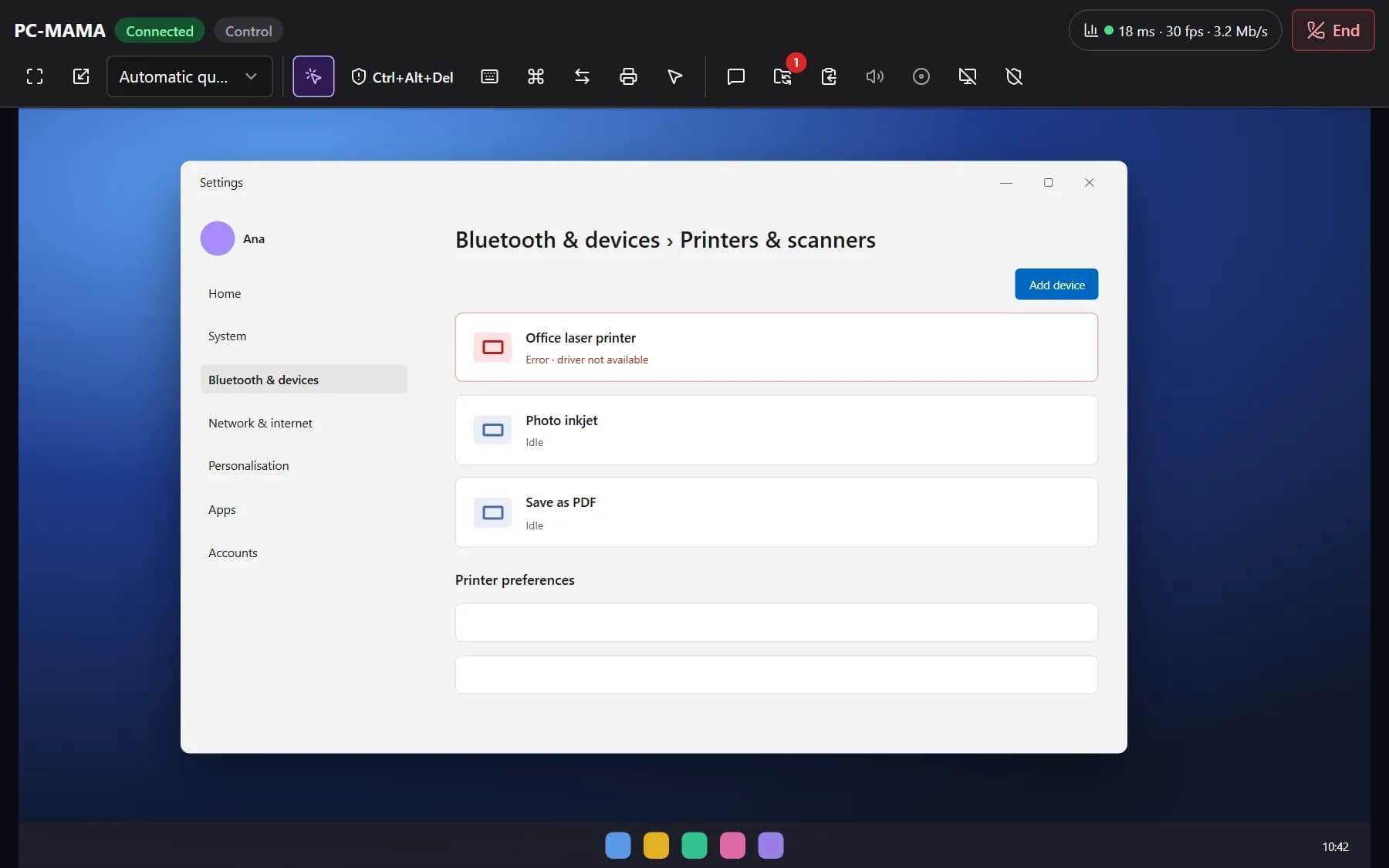
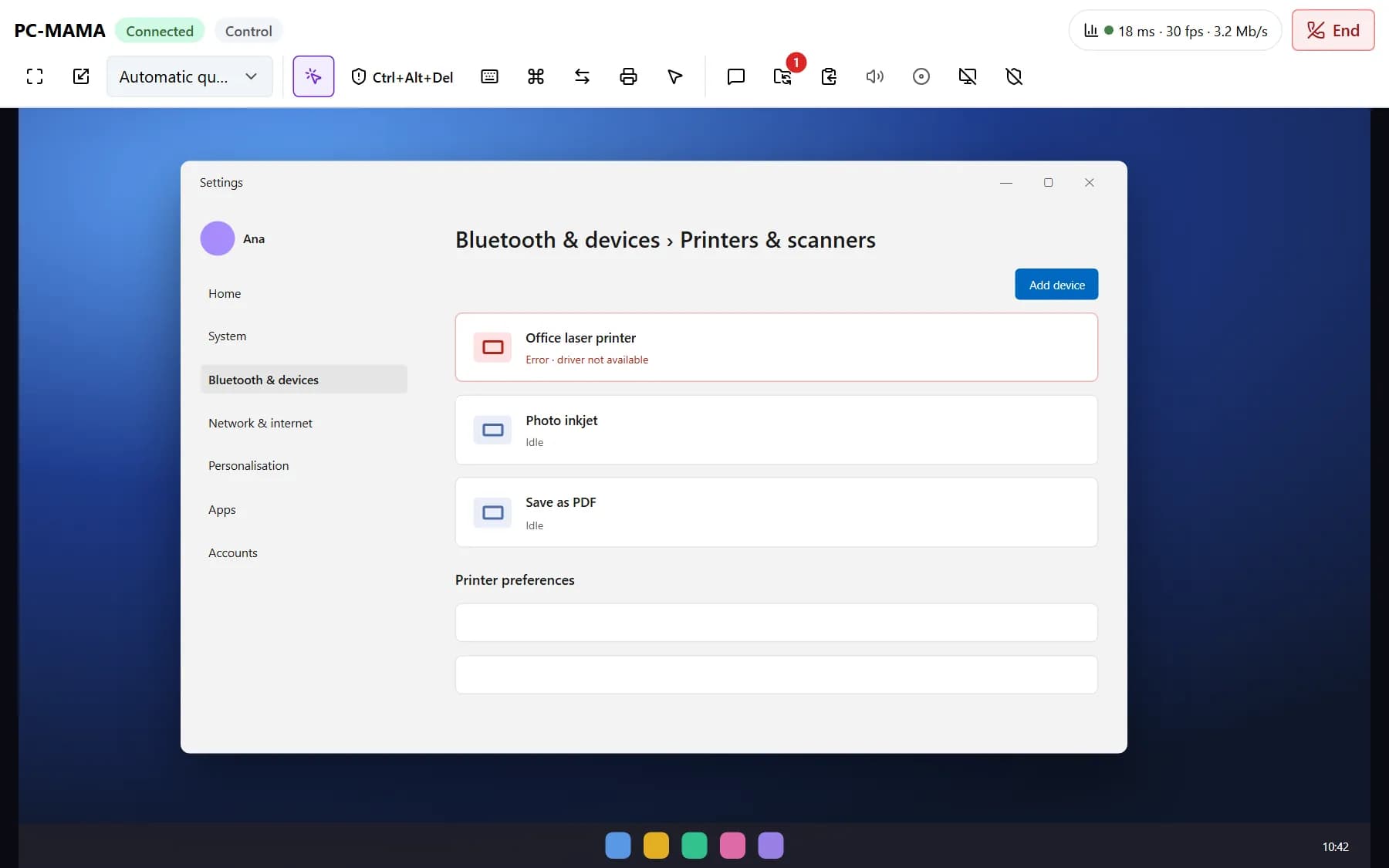 Connect to a computer from the websiteType the code, choose the mode, wait for them to accept and use the viewer: toolbar, keys, chat, clipboard, files, recording and ending.Read the guide
- Connect from the appConnect to another computer from the desktop app with its code, use your recents and address book, and get into your computers with unattended access.Read the guide
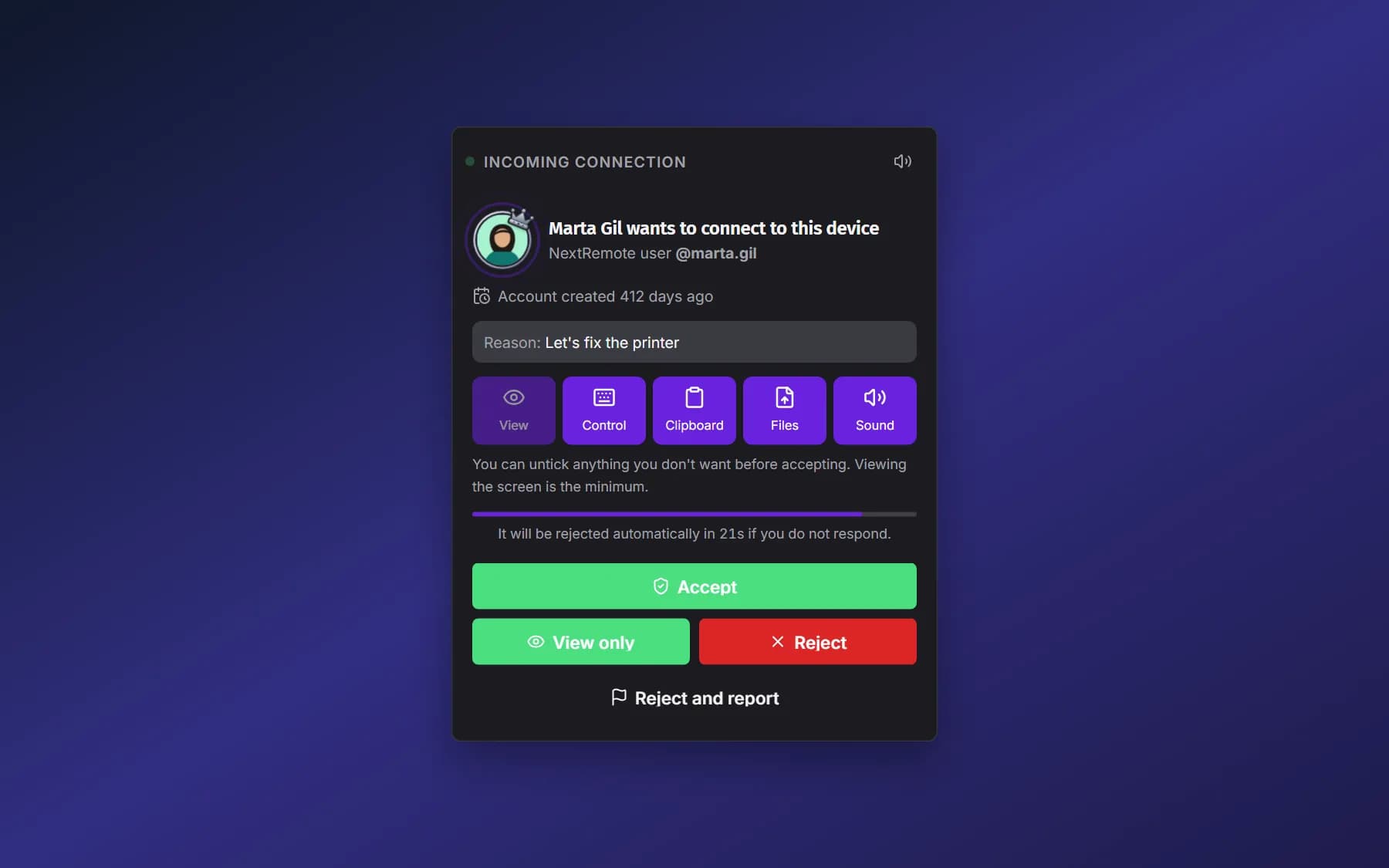
- Accept a connection on your computerThe accept window, how to spot a scam, which permissions you give, the floating notice with chat and files, how to end it and how to report.Read the guide
- Access settings for a computerDecide who can connect to a computer and what they can do: control, clipboard, files, recording, maximum duration and unattended access.Read the guide
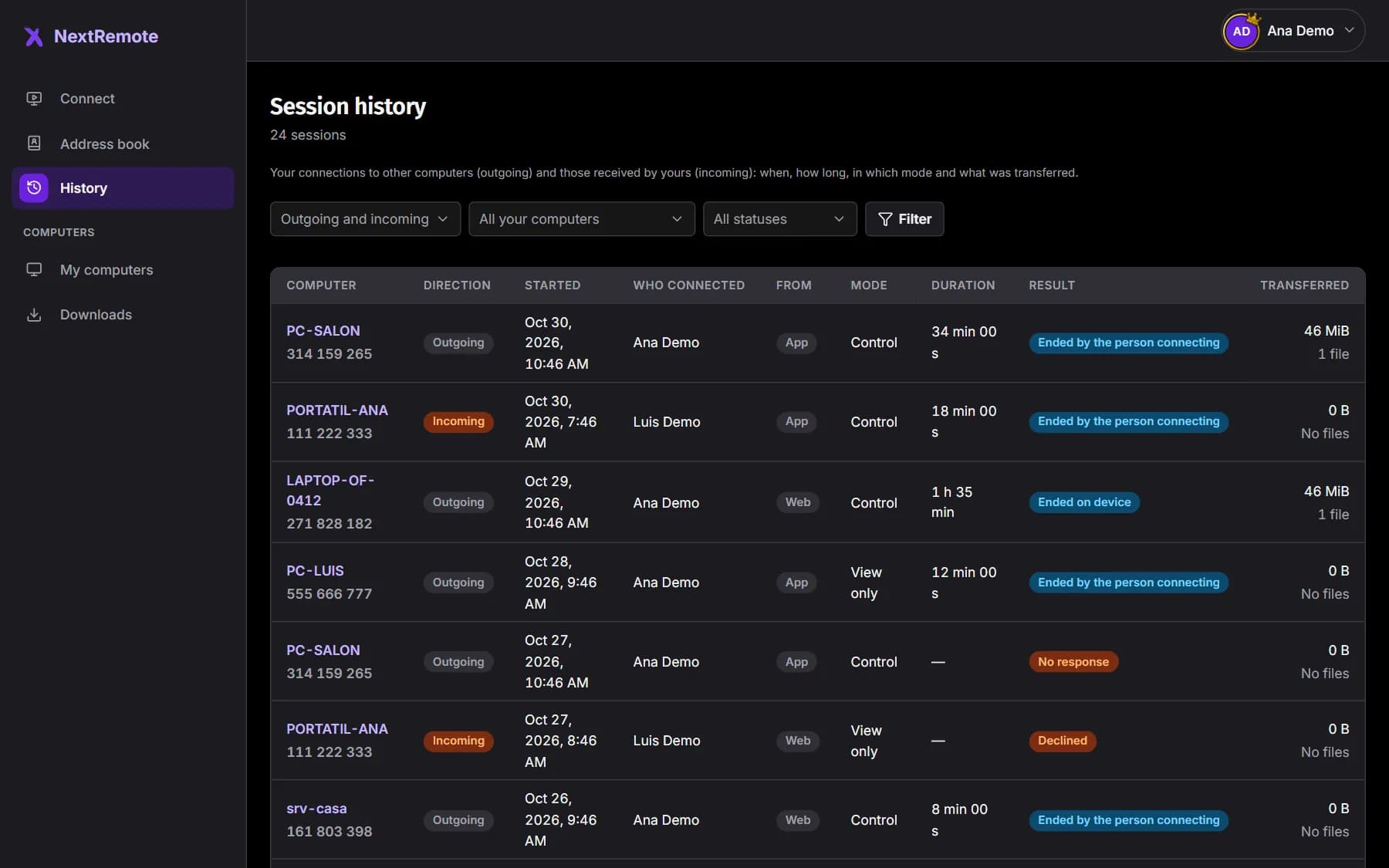
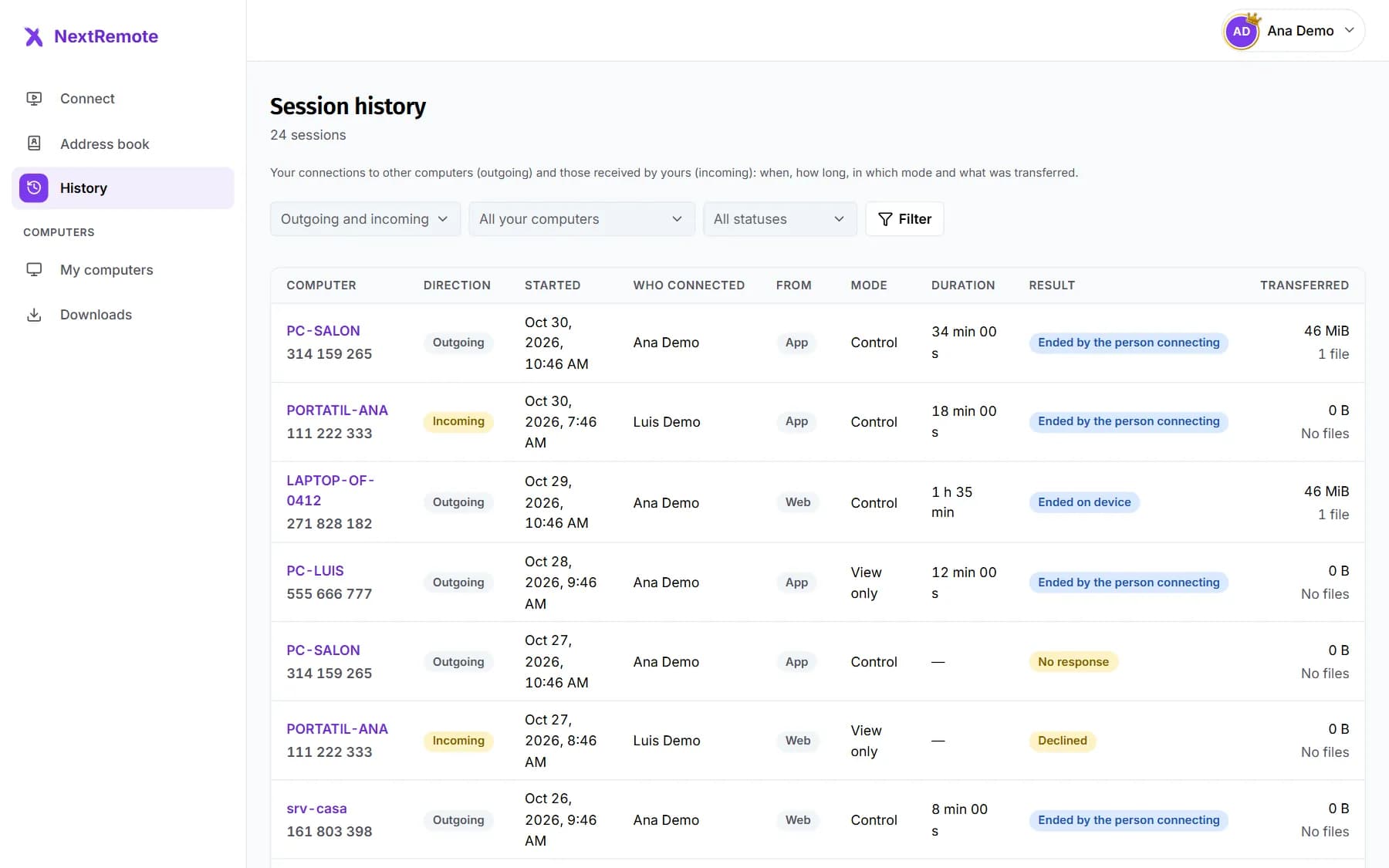 Session history and reportsReview the connections you have made and those that reached your computers, with their duration, mode and files, and report a suspicious one.Read the guide
Your account
Account and contributions
Your profile, account security, your data and how to contribute if you want to support NextRemote.
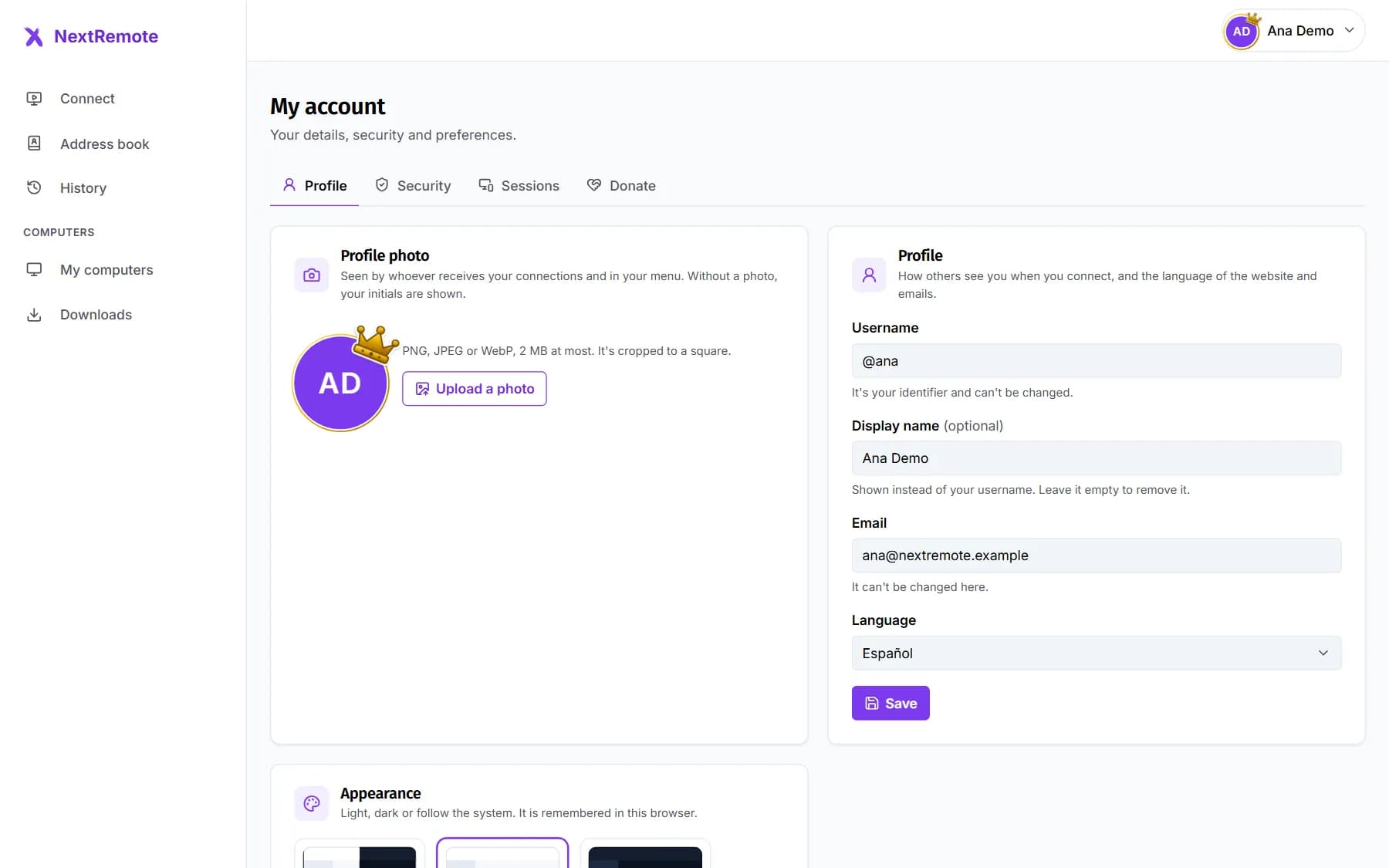
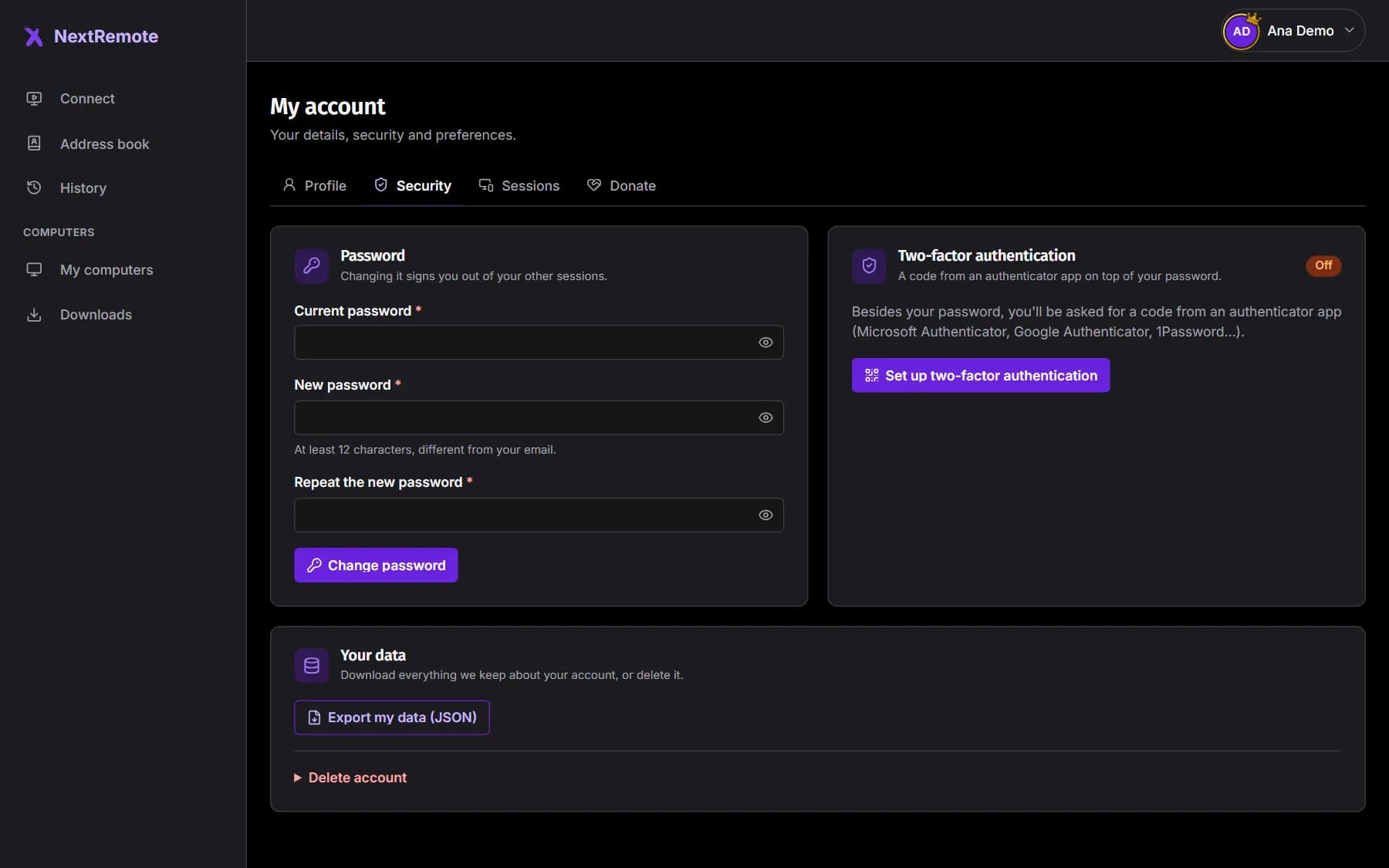
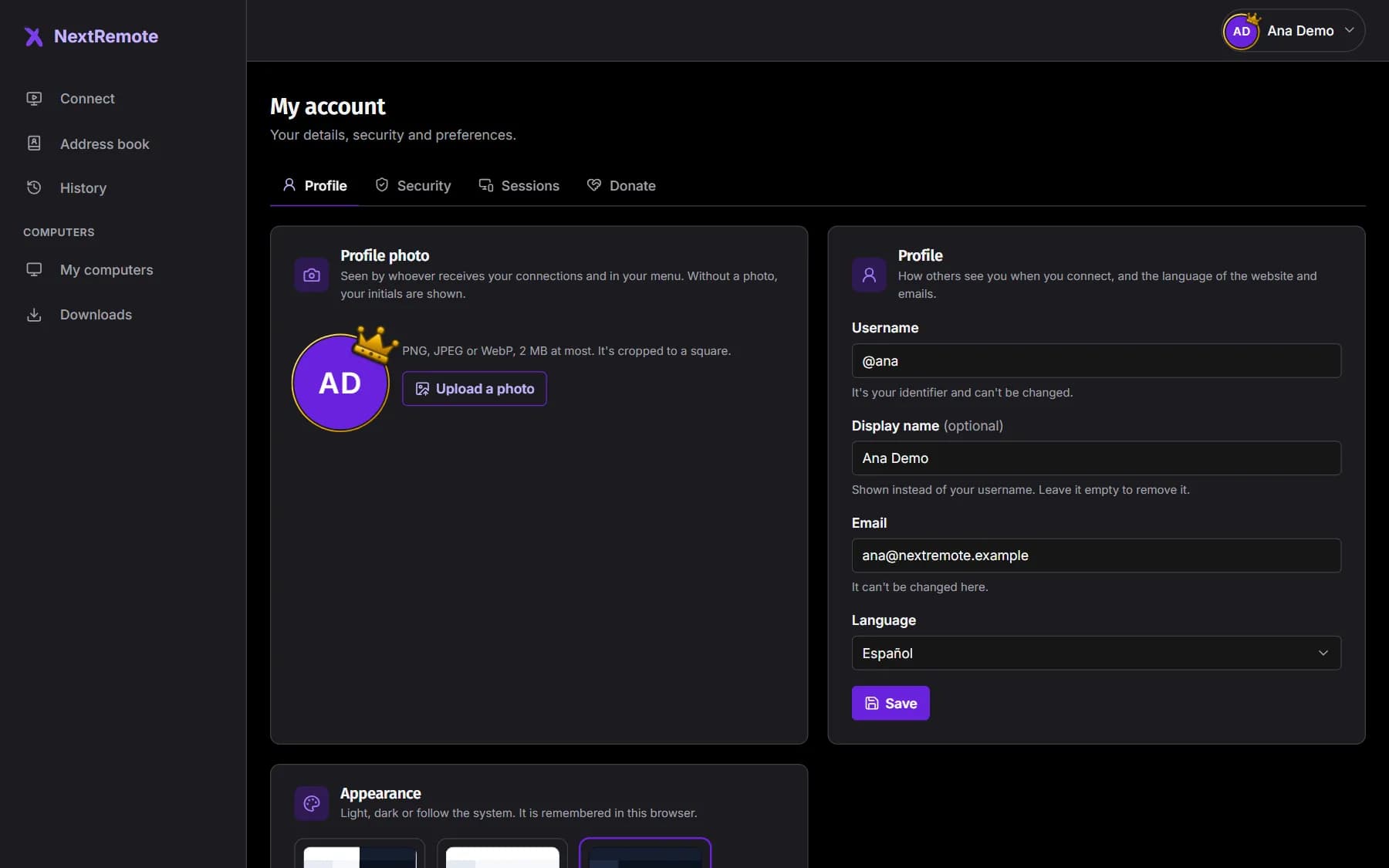
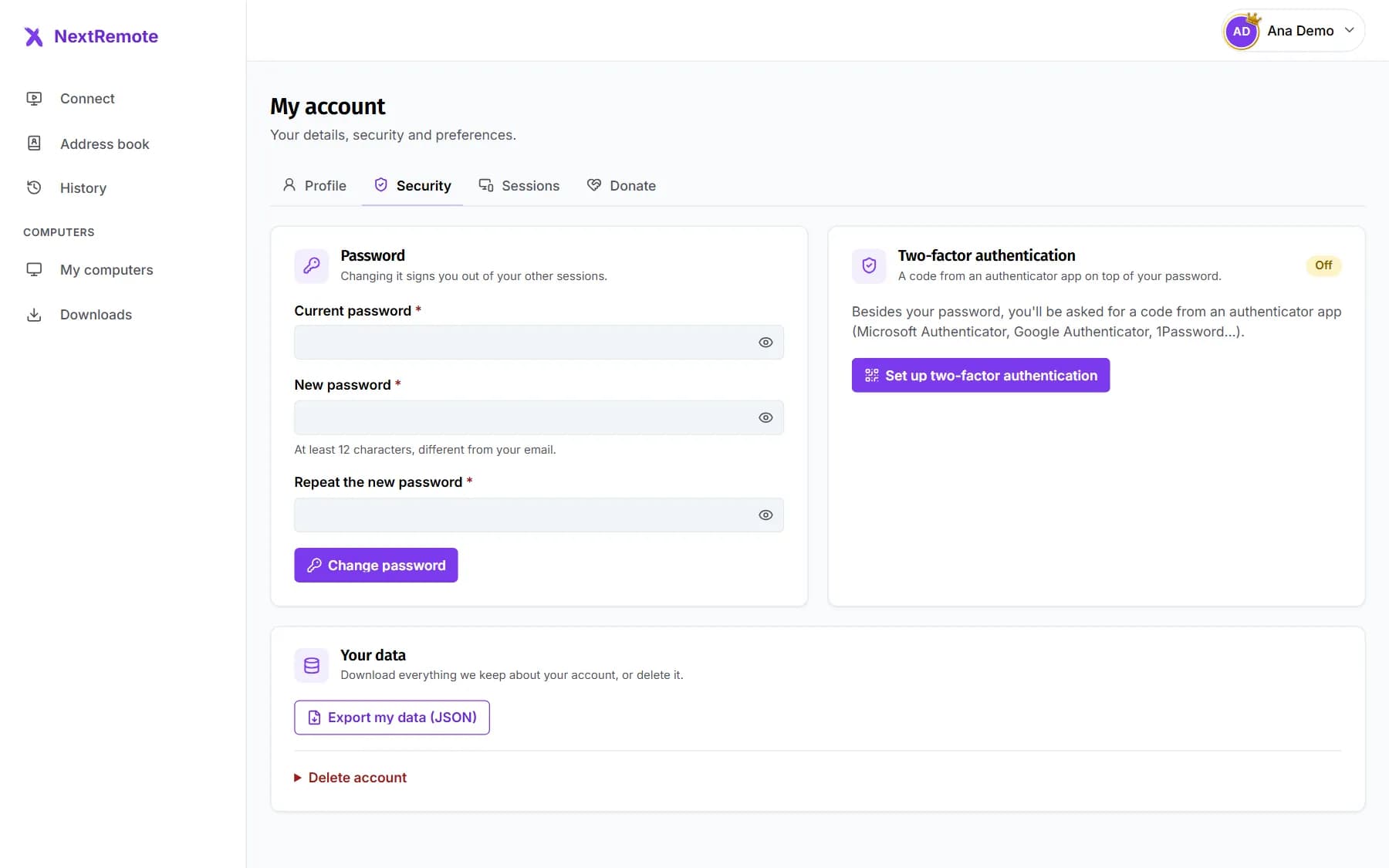 Your account: profile, security and dataPhoto and name, password, two-factor authentication and recovery codes, open sessions, exporting your data and deleting your account.Read the guide
 Contribute to NextRemoteContribute once or monthly through Stripe, manage or cancel the monthly one in the payment portal and decide whether you appear on the thank-you wall.Read the guide
Connect to any computer, for free
Create your account, install the app and connect with the other computer's code. No plans, no trial and no card.
Free for everyone. If you find it useful, you can contribute whatever you like.