
Access settings for a computer
Each computer has its own settings. They are changed in the computer's app, in "Access to this device", and, if it is linked to your account, also on the website.
Where they are
In the app: "Access to this device". On the website: "My computers" › the computer's settings.
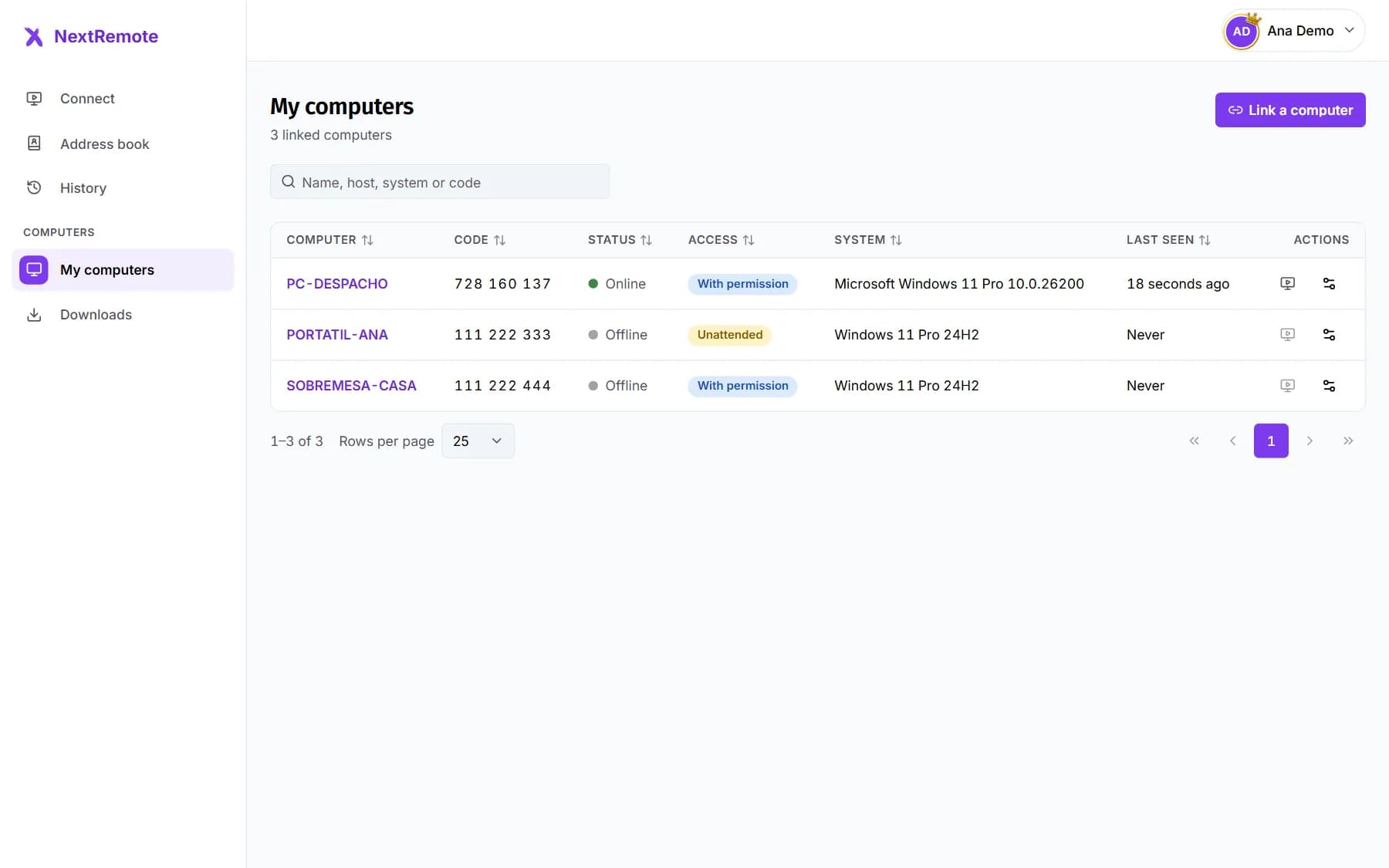
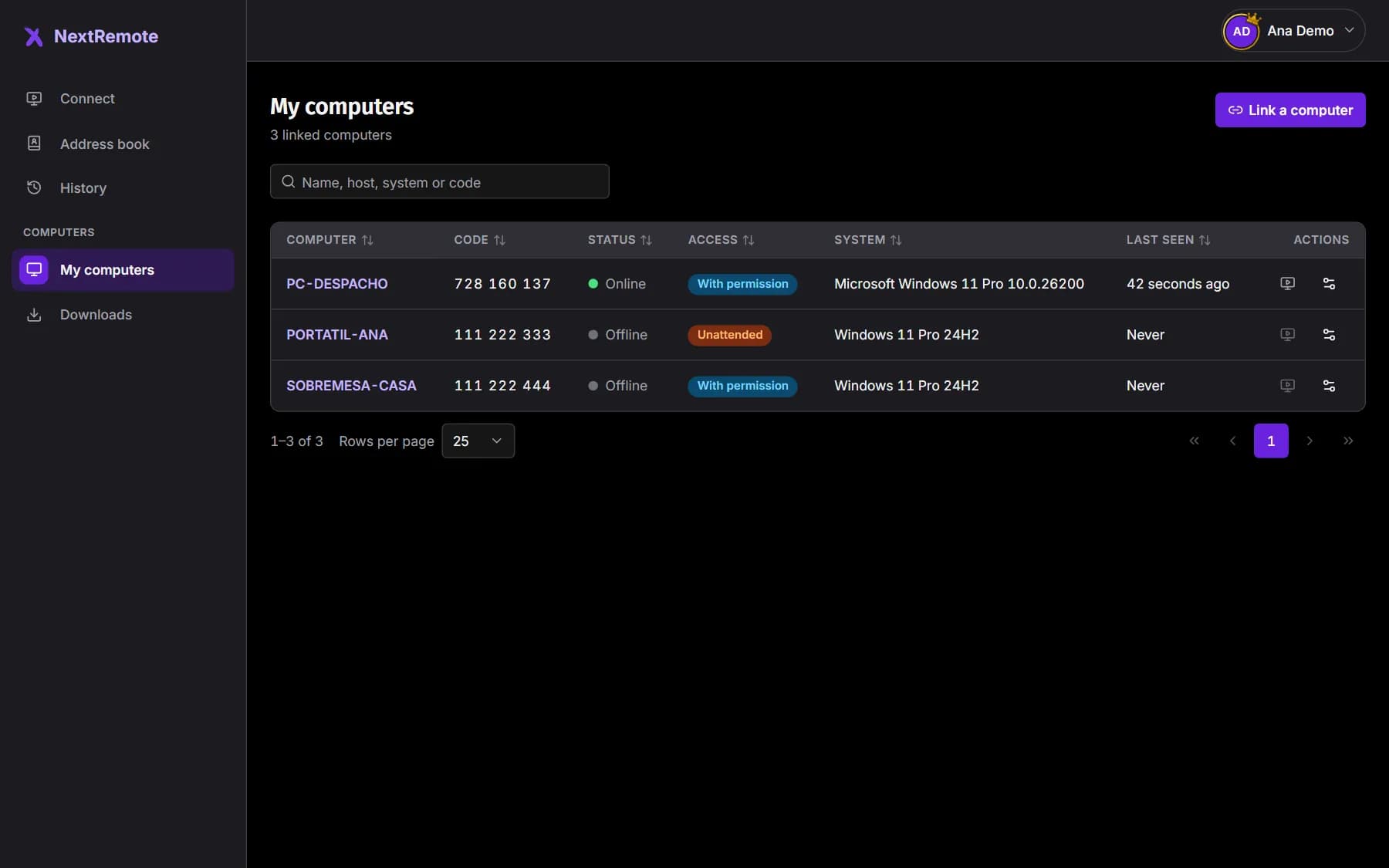
Allow connections
If you turn it off, nobody can ask to connect to this computer, not even your account.
What can be done
Keyboard and mouse control, clipboard, files, black screen and locking your keyboard and mouse (these two, Windows only). It is the most that can be requested; it can still be removed when accepting.
Declared recording
If you tick it, whoever connects can record the session in their browser and this is shown before accepting. If not, the "Record" button is disabled.
Maximum duration
When that time is reached, the session ends by itself.
Unattended access
Only for the owner account: it gets in without anyone accepting. The computer must be linked. Any other account is still asked.
Tip: With unattended access, anyone who gets into your account can get into the computer. Turn on two-factor authentication.
Save
Press "Save". The change reaches the computer immediately and applies to new sessions.
Expected result: You see "Access settings saved.".
If something goes wrong
I cannot turn on unattended access
The computer is not linked to your account. Sign in to its app.
I changed something and the open session is the same
The settings apply to new sessions. End the session and connect again.
I do not see the black screen or the lock
They only exist on Windows.