
Accept a connection on your computer
Nobody gets into your computer without you knowing. This guide explains what you see when someone asks to connect and what you can do at any time.
Only give your code to people you know
Your code is in "Remote access" › "This device's code". Only give it to someone you trust who is going to help you.
The request window
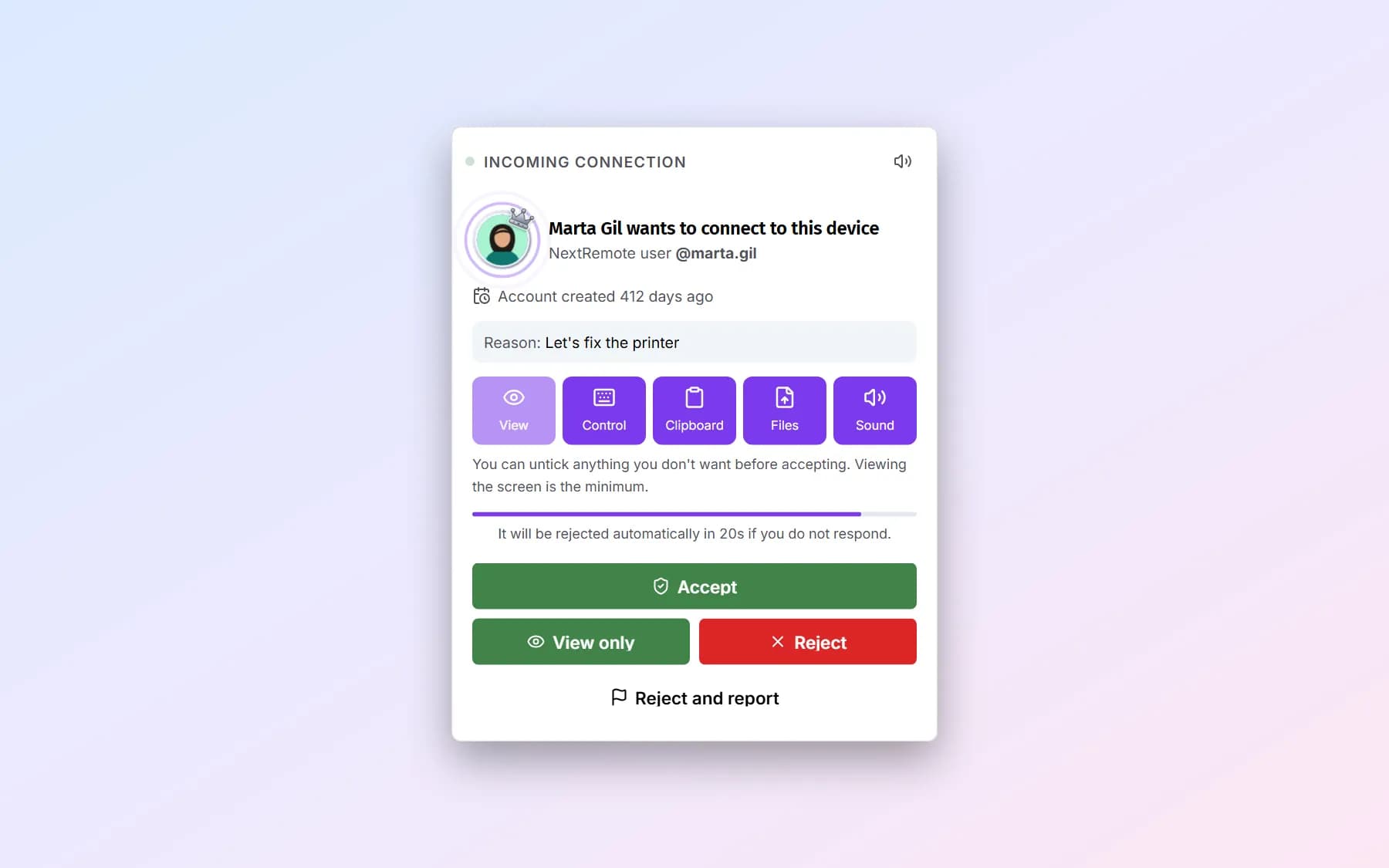
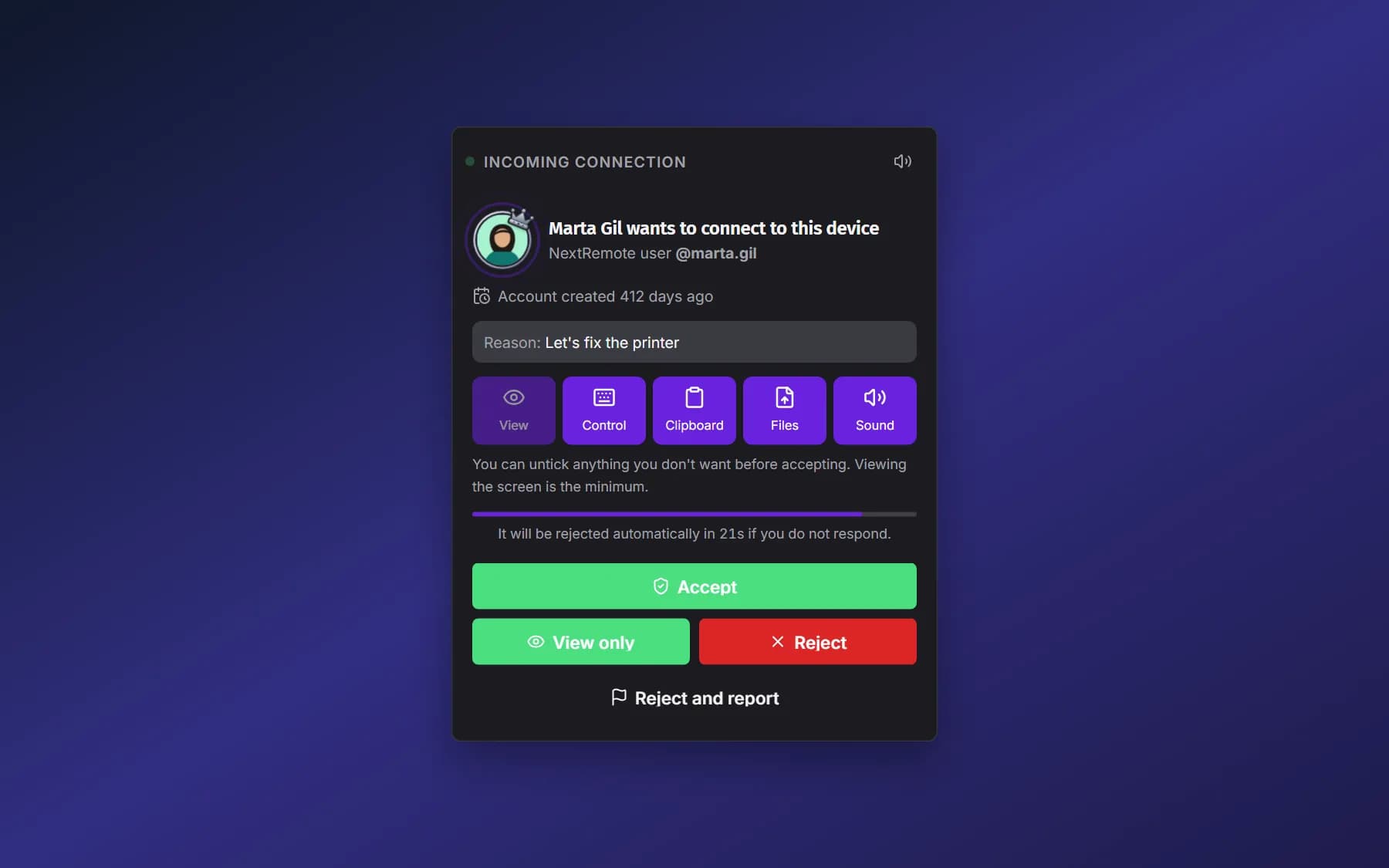
"Remote access request" appears, always on top. It shows who wants to connect (name, @username, photo and "Account created N days ago"), whether they can control or only view, the reason and whether the session will be recorded.
Expected result: You know who is connecting, why and whether it will be recorded.
Be wary of urgency
Nobody from a bank or tech support will ask to connect. If you were called by someone saying they are from your bank, a company or NextRemote, or the account is very new, reject it.
Choose what you let them do
In "What you allow", untick what you do not want to give: control, clipboard, files, black screen or locking your keyboard and mouse. "View the screen (always)" is the minimum.
Tip: Without control, there is no clipboard or files either.
Accept or reject
Press "Accept" or "Reject". If you do not answer within 30 seconds, it is rejected automatically. "Reject and report" rejects it and lets us know.
The floating notice
While the session lasts, "Remote session in progress" shows who is connected, the mode, the time connected and whether it is being recorded. It can be moved and collapsed.


Chat, files and pause
"Chat" to write; "Files" to see what is sent to you (it goes to Downloads) and what is taken; "Pause" to take control away without ending.
End whenever you want
Press "End" and confirm. No explanation needed.
Expected result: They stop seeing your computer immediately.
The final notice and reporting
When it ends, the notice says who ended it and how long it lasted. If something felt wrong, press "Report this connection".


If something goes wrong
No window appeared
The app was not open or you did not answer in time. Open it from the start menu or the tray and ask them to connect again.
Someone connected without asking me
The computer is linked to an account that has unattended access. Only that account can do it, and always with the notice. If it is not yours, unlink it or turn it off in "Access to this device".
I think I have been scammed
Press "End", report the connection and change any passwords you used. If you gave bank details, call your bank and report it to the police.
Is what I do recorded?
Only if the computer's settings declare it; the window then says "This session will be recorded" and the notice shows "Recording". The video stays in the browser of whoever connects.