
Install the app on a computer
The app is what lets a computer receive connections and connect from it. It does not ask for any enrolment code or account to be installed.
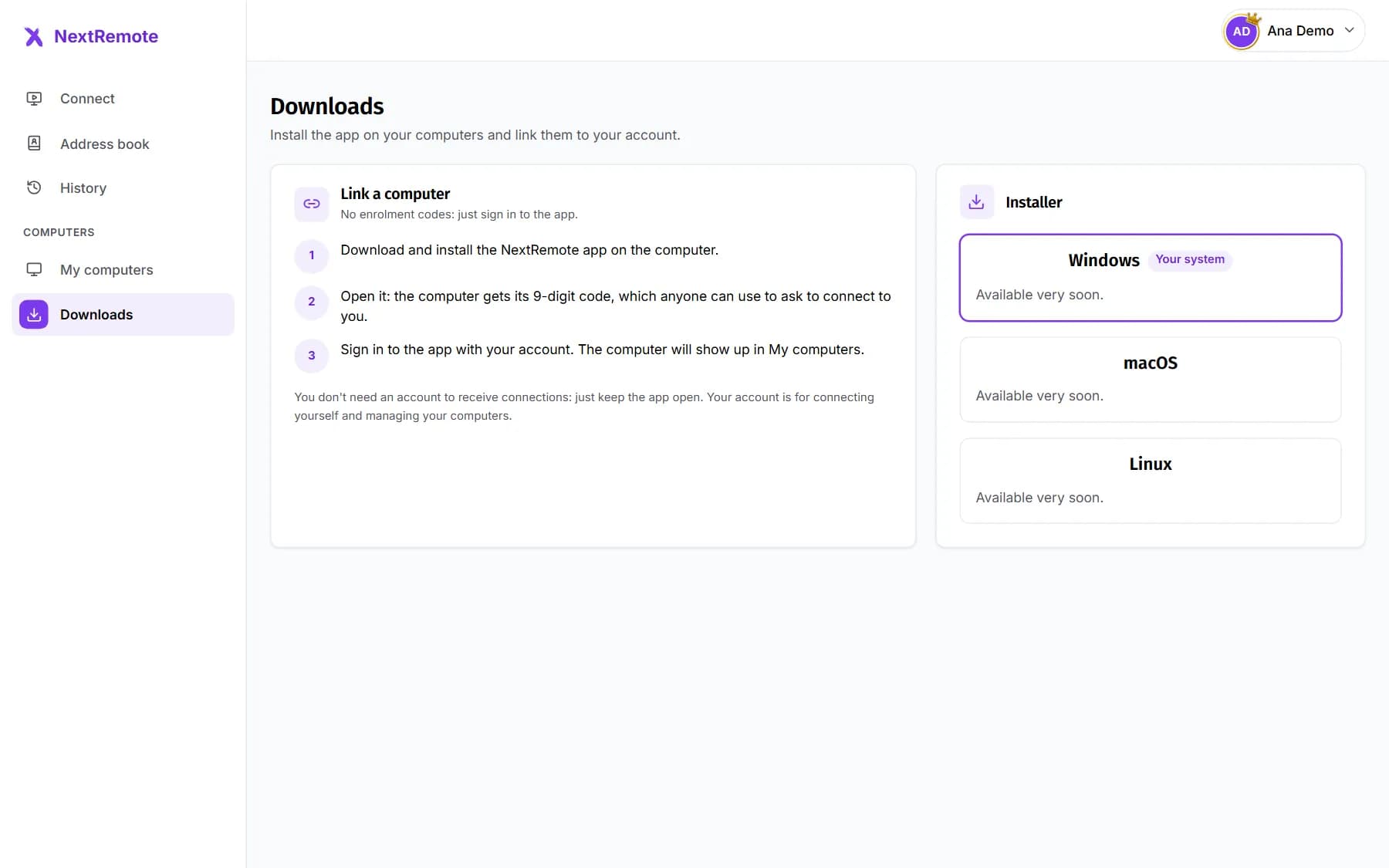
Download the installer
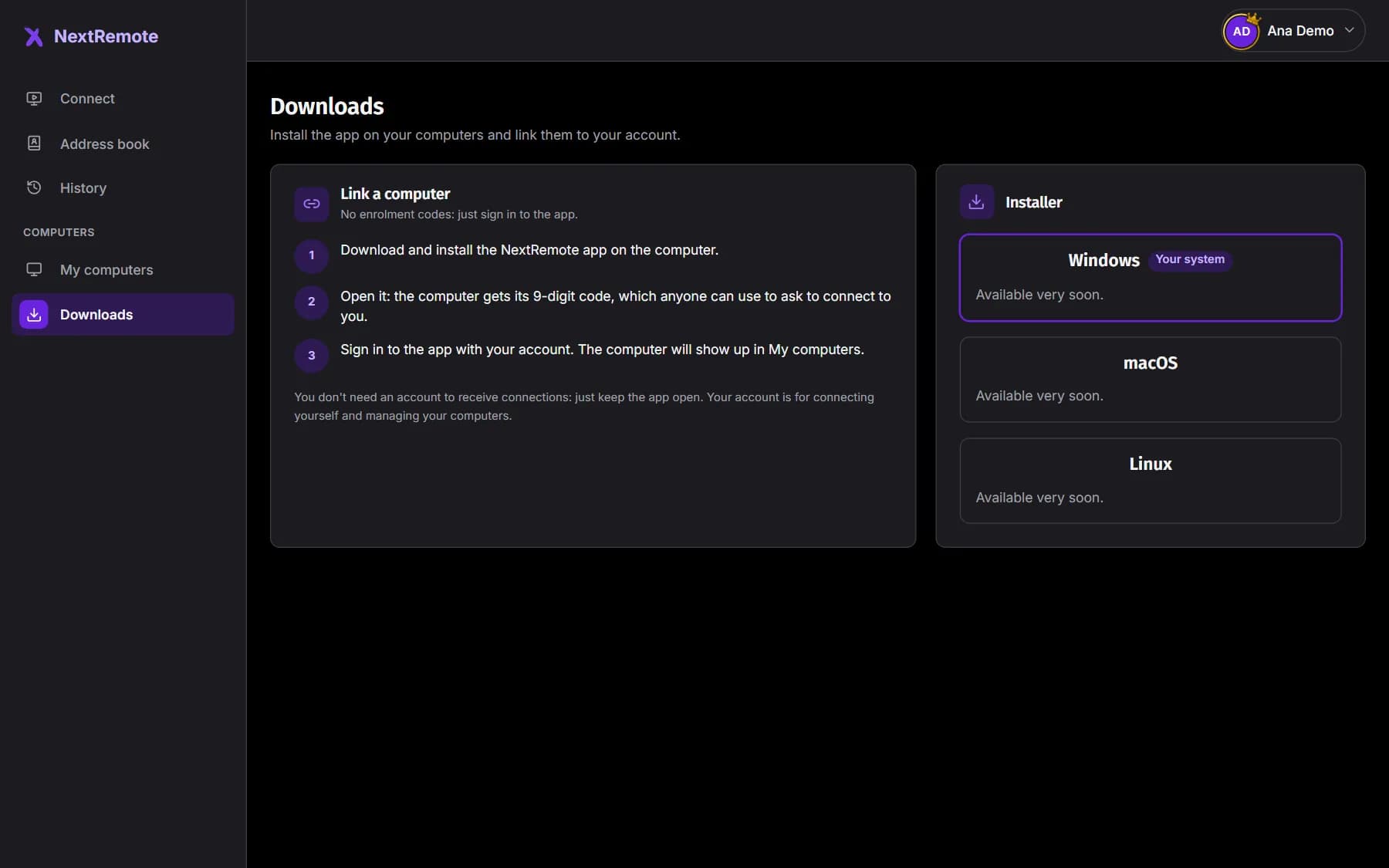
On the website's "Download" page (or in "Downloads" with your account) the one for your system is highlighted. You do not need an account to download it.
Install it
Open it and follow the wizard. Administrator permission is needed, because it installs a service that shows the screen and receives keyboard and mouse input.
Expected result: When it finishes, NextRemote opens.
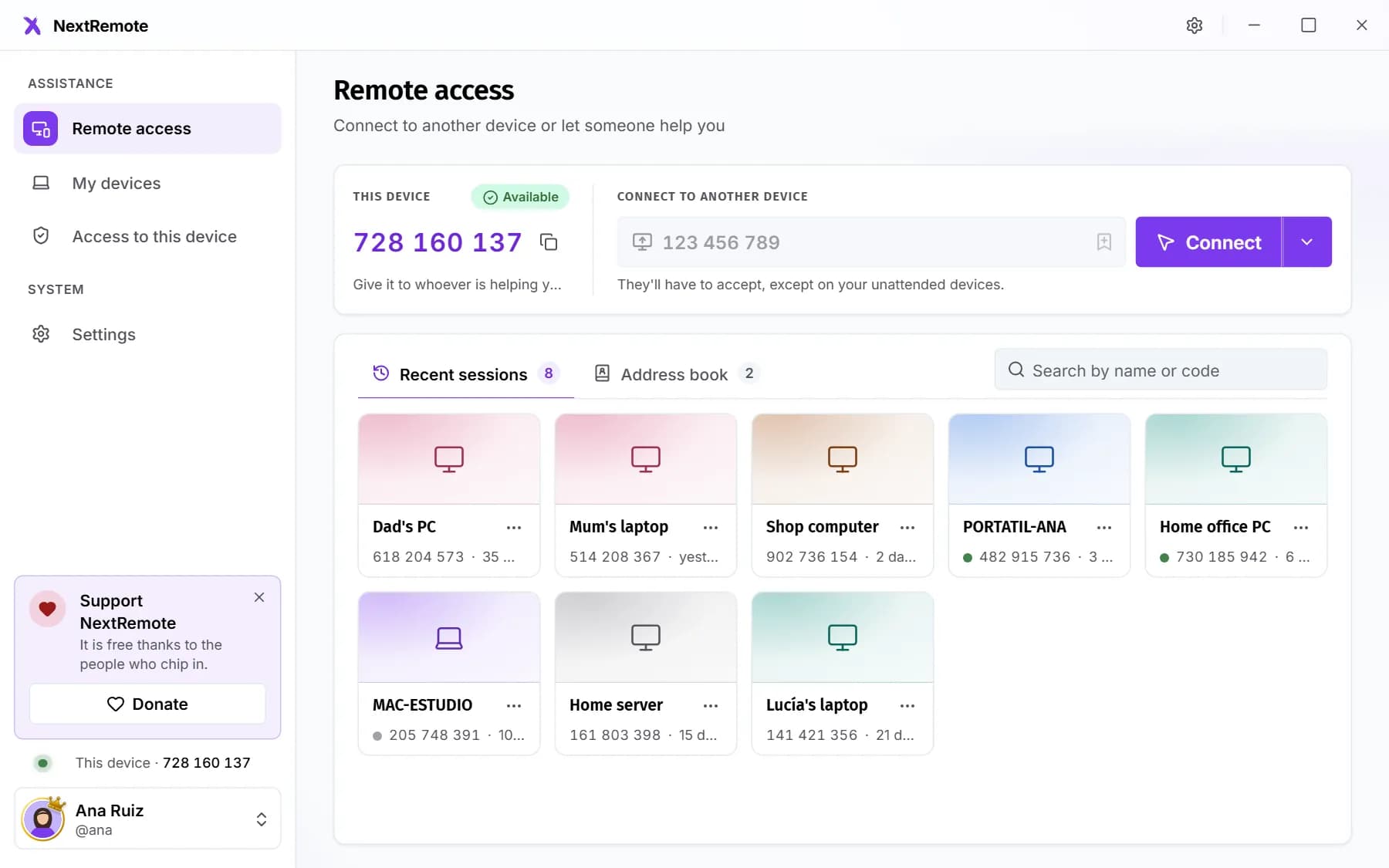
Look at the computer's code
The computer registers itself in a few seconds. Meanwhile you will see "Registering…". Then "This device's code" appears in "Remote access".
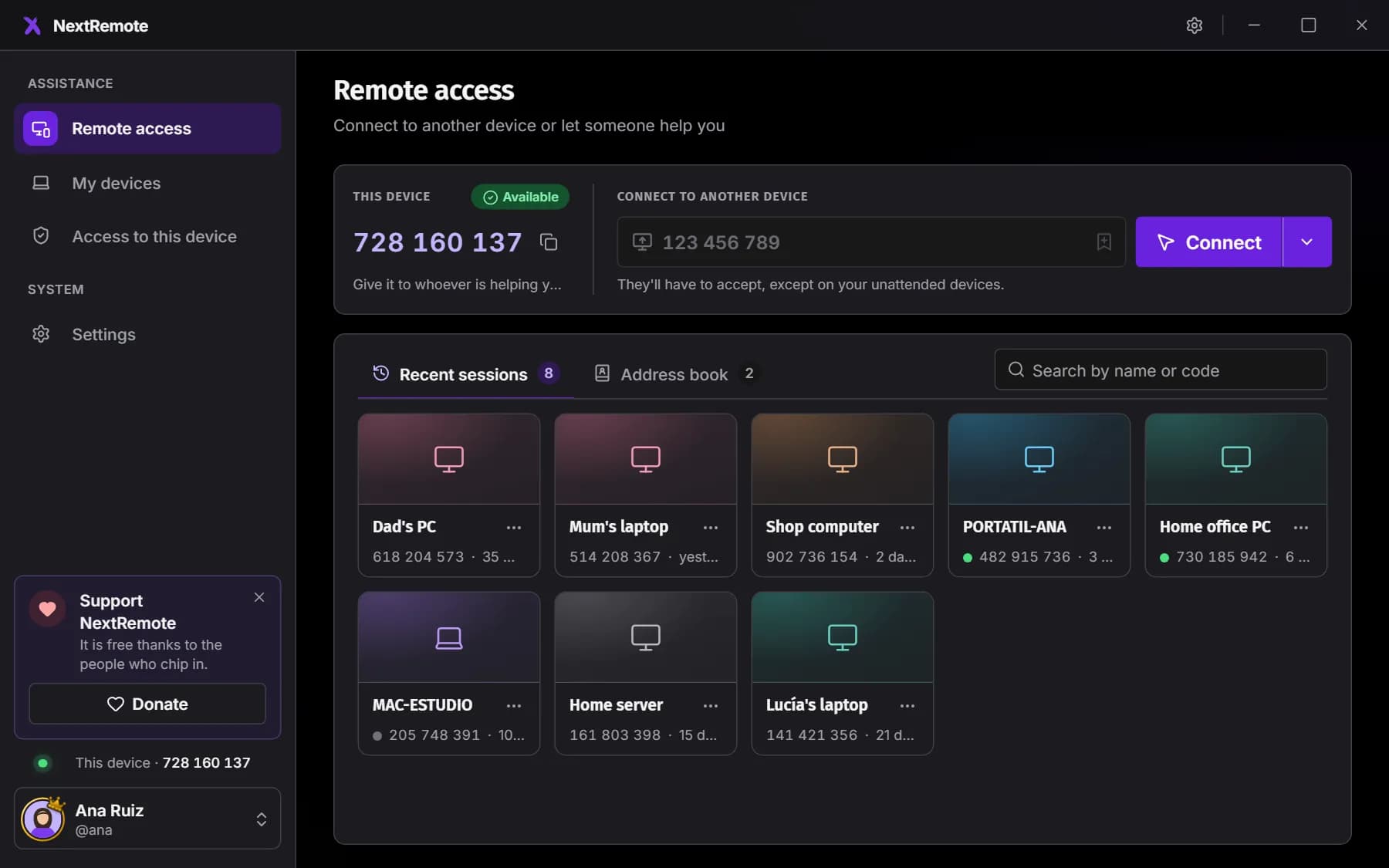
Expected result: You see a 9-digit code, such as 123 456 789.
Link it, if it is yours
If the computer is yours, sign in to the app with your account. It then appears in "My computers" and you can change its settings from the website and turn on unattended access.
Expected result: The computer appears in "My computers".
Tip: If you are going to help someone on their computer, do not sign in on theirs: they just need to give you their code.
If something goes wrong
Windows says it protected the computer
SmartScreen warns about programs it does not recognise yet. If you downloaded it from our website, press "More info" › "Run anyway".
It stays on "Registering…"
The computer needs Internet to register. Check the connection and wait a minute; it retries by itself. If nothing changes, see the troubleshooting guide.
I do not have administrator permission
Without it the service cannot be installed. Ask whoever manages the computer to install it.